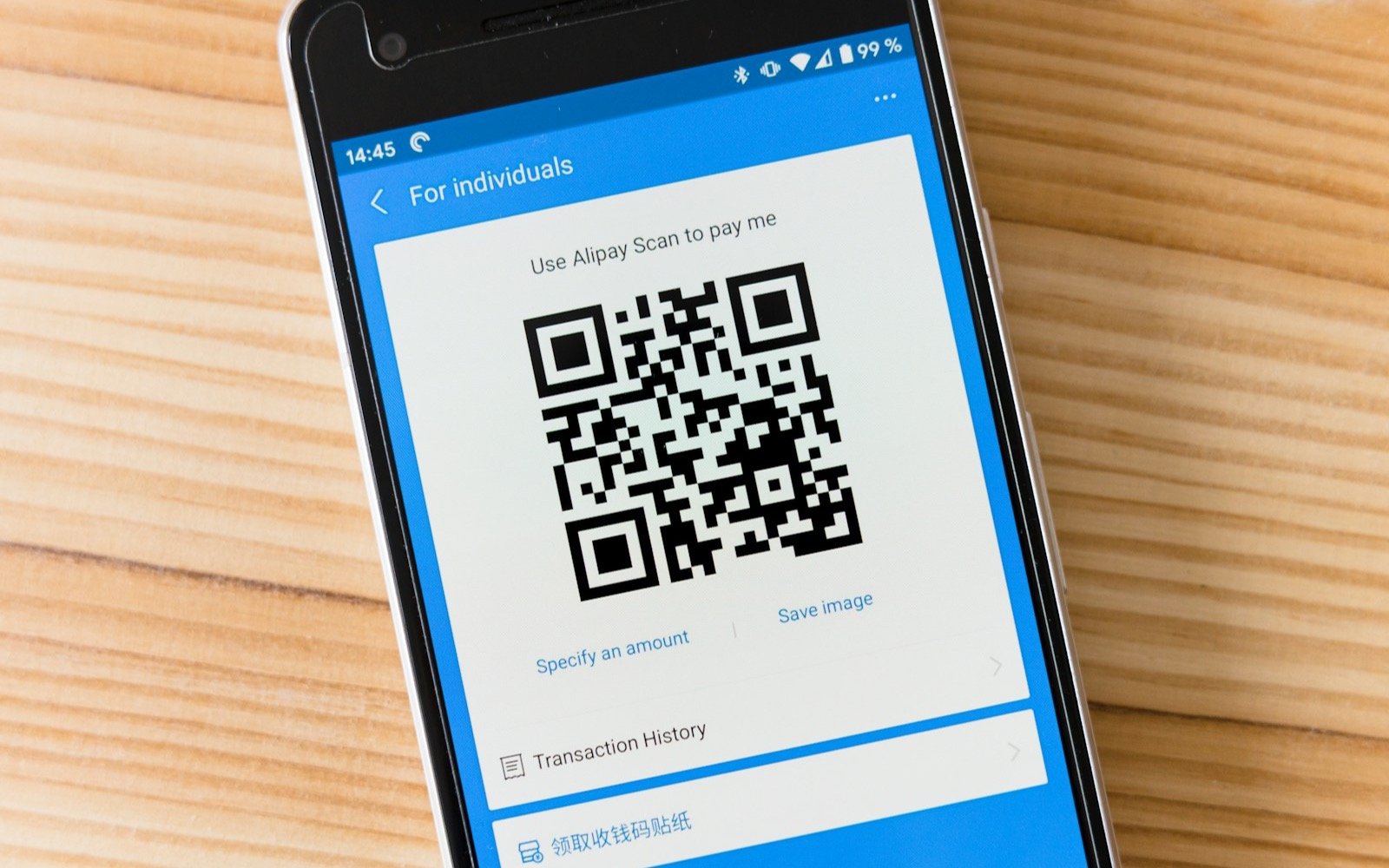
To learn how to make a digital business card, you need a page or design with your details, a link and a QR code that leads to it; then you share it on WhatsApp or on your printed card. Below: the steps, what details to include and when a free option is enough.
How to make a digital business card in 5 steps
- Choose where it will live. It can be a design published from Canva, a simple page or a profile you already have. What matters is that it has a link.
- Gather your details. Name, what you do, phone, WhatsApp, email, city and a link to your social media or your work. The full list is further down.
- Build the phone view first. Your customer will open it on a phone, so design for that screen. A WhatsApp button and a call button, large and at the top.
- Generate the link and the QR code. Paste the link into a QR generator and download the image in high resolution.
- Test it on two phones. One iPhone and one Android, with the camera. If something doesn't open, better to find out before printing or sending it.
What details to put on your digital card
- Name and trade in one line. For example, “Ana Torres, accountant for small businesses.”
- A WhatsApp button with a pre-written message. One tap and they are already messaging you; the message avoids the blank screen.
- Phone and email, only the ones you actually answer.
- City or service area. Someone who finds you by chance needs to know whether you're nearby.
- A link to your best work: your site, your catalog or your reviews.
- Logo or photo. Just one, well shot.
What to leave out: your home address, three different phone numbers and a long paragraph about yourself. A card gets read in five seconds.
Free digital business card: Canva or a link with a QR code
A very common free route is Canva. You pick a card or one-section page template, swap in your details and publish it. According to Canva's Help Center, a free account can publish up to five sites on a my.canva.site domain, so the link costs nothing. Then you turn it into a QR code with any generator.
The other free route is to use a link you already have: your WhatsApp Business profile, your Google listing or your business page, and put a QR code on it. It works if that page already says what you need it to say.
The limits of the free route are the borrowed domain (my.canva.site), little customization, a "Designed with Canva" footer that only a paid plan removes, and no one to ask for help when something breaks.
Free, your own page or NFC: which one fits
| Criterion | Free (Canva or a link with QR) | Your own page | NFC card or plate |
|---|---|---|---|
| Upfront cost | $0 for the tool | From a one-time payment for design and setup | The page's cost, plus the physical piece |
| Your domain and brand | No, on the free plan | Yes | Yes, if it points to your page |
| How the customer opens it | Link or QR | Link or QR | Hold the phone near it |
| Changing details later | Edit the design | Edit the page | Change the page; the piece keeps working if it stores a link you control |
| Best for | Testing the idea and sending it to people you know | Winning new customers with a polished image | Introducing yourself in person with a different gesture |
If you want to understand how the chip works and which phones read it, we explain it in NFC business card: what it is and how it works. Here it's enough to know that NFC doesn't replace the digital card: it opens it.
How to share your digital card on WhatsApp
- Send the card's link on its own, in a short message: “Here's my card with all my details.”
- Put the link in your WhatsApp Business profile information, so anyone who opens your chat sees it.
- Create a direct chat link. It looks like
https://wa.me/52followed by your 10 digits, and you can add?text=with a pre-written message for whoever messages you. It's the format we use on this very site. - Save the link as a quick reply, so you can paste it in one tap for every customer who asks.
Digital business cards with a QR code: what fails most
- A QR code that is too small or low in contrast. Print it dark on light with a margin around it.
- A QR code that points to the final link of a page that later changes. If you can, use a link you control.
- A page that loads slowly or looks broken on a phone. The QR code gets there fast; the page is what disappoints.
- Printing without testing. A badly generated QR code on 500 cards gets expensive.
When to move from free to something of your own
A free card works as long as you send it to people you know. It pays to make the jump when strangers start messaging you and the first impression already counts, when you need your own domain and logo without third-party names, or when the card must carry services, location and WhatsApp in a single view. To see what physical pieces with a chip cost, we have a guide to NFC plates for businesses.
At Elevalia
With our NFC solutions service we set up your NFC card or plate so it opens your digital card by link, QR code or a tap of the phone, starting at $2,990 MXN. Setup and testing take 5 to 10 business days. The quantity, material and printing of the physical pieces are defined in the proposal. We don't promise how many customers it will bring you: that depends on your offer and how you respond.